Controlling who can see your Codex Sites site
A security-minded guide to Codex Sites access control: every deploy is production, so set the audience before sharing, then widen from owner and admins.

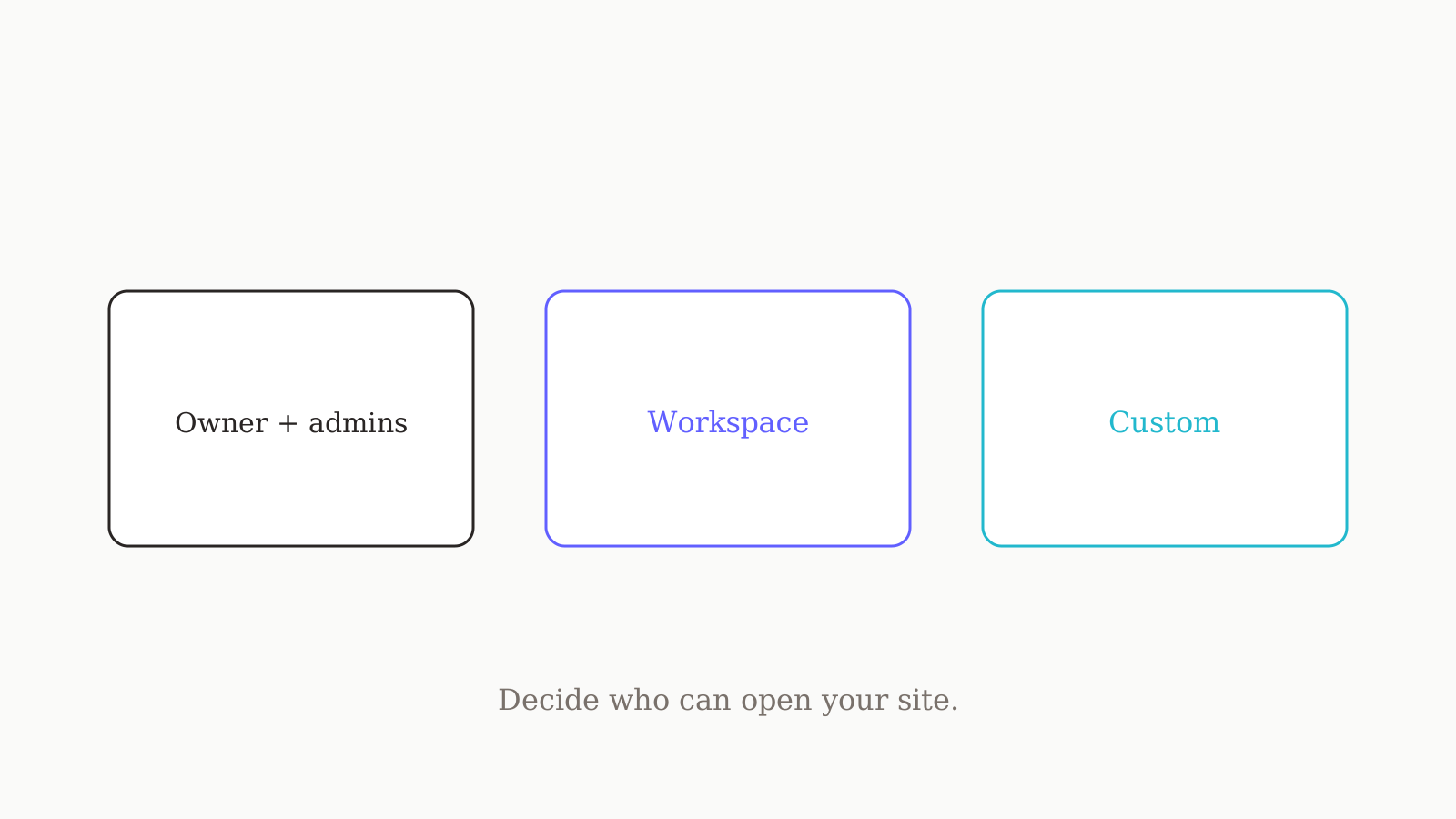
Codex Sites controls who can reach a deployed site, but the default is not "public" — it is the owner and workspace admins, and it stays that way until you change it. That matters because every deployment URL is a live production URL, so deciding the audience is the real safety step, not an afterthought. This guide covers the three access modes, the two identity shapes you pick at build time, the verbatim prompt for changing access, and the checklist we run before widening a site to anyone.
Why access is the real safety step
In a lot of hosting tools, a "preview" link is a soft, low-stakes thing — temporary, scoped, forgettable. Codex Sites does not work that way. Every deployment URL is production. There is no throwaway preview link that quietly expires, which means the moment a URL exists, the only thing standing between your site and the wrong audience is the access setting.
So we treat access as the gate, not the build. The build can be perfect and the deployment can still be a problem if it is reachable by people who should not see it — half-finished copy, test data, a form that emails real addresses. The fix is boring and reliable: set the audience before you share the URL, and keep a new site as narrow as possible until you have actually looked at it.
That is also why the default is sensible. A new Codex Sites site is limited to the owner and workspace admins out of the gate. That gives you a real production environment to review in, with a tiny audience, before you make a deliberate decision to widen it.
The three access modes
Codex Sites gives you three audience settings. The owner always retains access; these modes describe who else can reach the site.
| Mode | Label in Sites | Who can reach the site | Use it when |
|---|---|---|---|
admins_only | Owner and admins | The site owner and workspace admins only | A site is new or under review; this is the default and the safest |
workspace_all | Workspace | All active users in your workspace | The site is reviewed and meant for everyone internal |
custom | Custom | Specific active users or workspace groups you choose; the owner is always kept | The audience is a known subset — a client, one team, a review group |
The progression is the whole point. Start at "Owner and admins", review, then move up to "Workspace" or sideways to "Custom" depending on who actually needs the site. Custom is the tightest sharing option short of keeping it to admins: you name the exact users or groups, and Codex Sites keeps the owner on the list so you never lock yourself out.
Workspace identity vs public sign-in
The access modes decide which people in your org can reach a site. A separate decision — made when you build the site, not after — decides whether visitors must authenticate at all and how. There are two shapes:
- A workspace-authenticated user identity site. This one needs the current workspace user's identity, so only signed-in members of your workspace get through. It is the right shape for an internal tool that should know who the user is.
- An authentication-enabled Sites project. This offers public sign-in or an external identity provider. It is the right shape when the audience extends beyond your workspace but you still want people to sign in.
Keep the two layers straight: identity shape (build time) governs how someone proves who they are; access mode (after deploy) governs who is allowed once they have. A workspace-identity site set to "Workspace" reaches signed-in colleagues; the same site set to "Owner and admins" reaches only you and your admins, even though everyone could technically authenticate.
Change access with a prompt
You do not hunt through a settings panel to widen a site. You ask the plugin, and — this is the part we care about — you ask it to show you the current site and confirm the deployment URL first, so you are not changing access to the wrong thing. Here is the verbatim prompt for opening a site to the whole workspace:
@Sites Change this deployed site's access to everyone in my workspace after showing me the current site and confirming the deployment URL.
Two habits make this safe. First, always make the change end-to-end in one instruction that includes the confirmation step, rather than blindly flipping a mode. Second, name the plugin with @Sites so Codex treats this as a Sites access change, not a generic request. If you are tightening rather than loosening — pulling a site back to admins, or down to a custom list — phrase it the same way: confirm the site and URL, then change the mode.
Before you widen access: a checklist
We do not move a site off "Owner and admins" until these are all true. Run it every time, because widening access is the irreversible-feeling moment — once colleagues or clients have the URL, you cannot un-send it.
- Audience is intended, not incidental. Confirm that only the people who should see the site can reach it under the new mode. If "Workspace" is broader than you need, use "Custom" instead.
- Secrets were configured through Sites. Environment variables and secrets belong in the Sites panel for the project, never committed to the repo. Confirm none leaked into source before the audience grows.
- Data handling has been reviewed. Check what the site stores and shows. A production URL with real submissions is a data-handling question, not just a sharing one.
- Status and production URL are confirmed. After deploy, verify the site's status and the production URL before you paste it anywhere. Share the confirmed URL, not the one you assumed.
- Identity shape matches the audience. If the site should require sign-in, confirm it was built as a workspace-identity or authentication-enabled project — access modes alone do not add a login.
One more honest note: Codex Sites is in preview, and on Enterprise an admin must enable Sites through role-based access control before members can use it at all (Business has it on by default). Preview means details can change, so treat the official documentation as the live source of truth and re-check the access behaviour if it has been a while.
Where this fits
The access decision is downstream of a clearer one: what the site is and who it is for. That is a brief problem, and it is the part Codex Sites does not solve. Before we type @Sites, we use oran.chat to draft and pressure-test the site brief across GPT, Claude, and Gemini — branching the prompt instead of overwriting it — so the spec we hand Codex already states the intended audience and what data it touches. Keeping one instruction set steady across those models helps; see the system prompt that works across GPT, Claude, and Gemini.
For the mechanics around this, save vs deploy in Codex Sites explains the review gate that pairs with access control, and what Codex Sites is covers the bigger picture in plain English. The official reference is the Codex Sites documentation. For more like this, see Playbooks.